Feature roundup through 7 October 2026. Availability and recorded instrument detail depend on the installed build and the data in each recording. Android guest features described below are in the local review candidate; Google Play public availability is not confirmed here.
Recorded PFD: review Boeing-style rectangular or Airbus-style rounded instruments alongside the map and graphs. Auto/manual style, collapse and touch-friendly enlargement are available. IAS, GS, altitude, AGL height, V/S, attitude, heading, recorded targets and VREF follow the selected replay sample.
Instrument data stays honest: recorded LOC / GS receiver indications appear only when valid data exists. Older recordings retain their available fields. AGL is not radio altitude, and unavailable FMA, FD commands, QNH, ILS identifier or DME are not invented. This is a recorded-data reconstruction, not a manufacturer display or certified instrument.
Evidence-based debrief: inspect observed values, criteria, timing and duration behind deductions, including 1000 / 500 ft stabilization gates. ILS, LOC, RNAV / RNP and visual approaches use their applicable verified references. Coverage and unscored items distinguish missing data from poor flying.
Synchronized review workspace: map, two configurable telemetry graphs and replay cursor share the same moment. Choose metrics, units, axis limits and time windows; inspect flare, throttle-idle and touchdown events. Significant scored deviation episodes receive an X marker at their worst point; missing data remains a gap.
Review, then repeat: jump the review cursor to ten seconds before a problem or use Reposition here for a separate retraining action. Retraining requires the same aircraft, a valid airborne sample of at least 50 ft AGL, a fresh connection and no active recording. Supported position, attitude and settings are approximated; Freeze remains held.
Compare like-for-like sessions: align graphs to touchdown and compare aircraft, runway, procedure, policy and available weight, flap, reference-speed and weather metadata. Review condition-filtered trends and daily / weekly / monthly bests. Unknown historical conditions are not silently treated as an exact match.
Detailed approach and Pilot Test documents: retain flight-path maps, approach guides, touchdown close-ups, per-exercise targets, errors and deduction evidence as PDF, standalone offline HTML, full-measurement CSV and source JSON. Automatic generation, regeneration, job status / retry and Android save-location selection support keeping the result.
Route briefing and LEG editing: inspect the next FIX, remaining distance, planned altitude, ETE / UTC ETA and turn information; edit FIX and altitude / speed restriction semantics. Optional geometric descent and deceleration references use disclosed assumptions. Imported plans and these estimates are not the aircraft active FMC leg or performance-based VNAV.
Map control and information: north / track / heading views, look-ahead, free pan / return to aircraft and optional phase-based zoom memory. Airport, runway, FIX, ATC and traffic cards expose source and freshness; current local wind can be shown as runway headwind / crosswind components. Layer profiles and route-related ATC / traffic decluttering help keep the map readable.
Connected taxi routes and sharing: enter a taxiway sequence, choose a start / end when needed, and draw only connected simulator facility segments. Explicit Share / Load lets PC and mobile use the route with revision conflict checks. Progress is manual; a green route is not an ATC clearance or automatic taxi command.
Globe and map appearance: wide-area 3D uses a globe and close-up airport views return to a local projection; 2D remains available. Adjust trace / track thickness, trace opacity, FIX point / label size, restriction visibility and deviation-X size / visibility, with saved preferences and group reset.
Pilot Test progression: move from single targets to paired targets and coordinated altitude / speed / heading changes, including steep turns. Spoken and onscreen instructions, target capture, stable hold, simultaneous onset and balanced progress feed per-exercise results and error graphs. This is simulator practice, not an official checkride.
Android offline guest candidate: Explore without connection opens the actual bundled client screens with an isolated virtual Host, synthetic PHNL route, replay / PFD, local MCP / CDU, Pilot Test and sample documents. It is an interactive preview, not a simulator or live avionics session; real navigation, traffic, weather and aircraft functions still need the Windows Host.
Map references do not replace charts or real-world navigation. Replay reconstruction and retraining do not restore complete FMC, add-on internal state or weather. Online coverage varies; missing historical measurements are not fabricated. These features do not certify an aircraft or pilot, guarantee zero simulator performance cost or confirm Google Play release.
Latest development highlights
Development update · 12 October 2026. These improvements have been implemented and checked in local builds. Public installer and update-channel availability is tracked separately; features depend on the installed build.
In-game Control / Monitor modes: prepare an approach and access FMC / MCP, recording, Pilot Test and hold controls from the MSFS panel. Monitor mode keeps flight values and training status in a compact display with adjustable background opacity.
PMDG 737-900 preparation: improved PERF / approach selection, both NAV radios and course settings, MCP target verification and AP / APP / FD reset handling. Checked in the RKSS runway 32R to 32L preparation scenario.
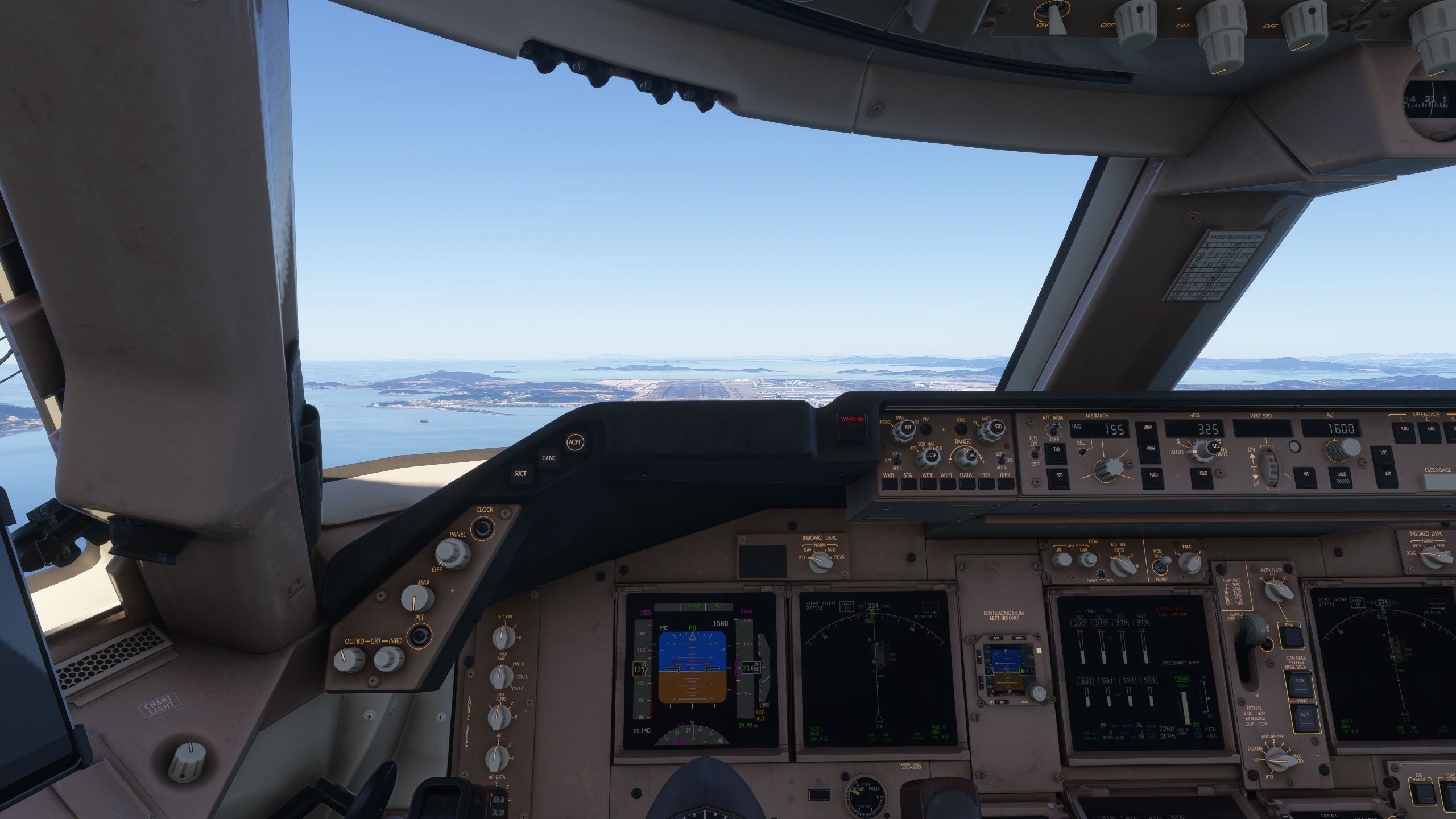
ASOBO / Working Title 747-8 preparation: improved airport and approach selection, starting-FIX / LEGS sequencing, ILS frequency / course verification and FD / MCP setup. Altitude entry now uses the aircraft’s actual MCP altitude slot and checks its readback, correcting a case where the requested 1,600 ft remained at 10,000 ft on the physical MCP. Two RKSI runway preparations were recorded.
Fenix A320 experimental preparation: improved handling of the specific ENTER DEST DATA advisory before FULL selection, and checks of computed VLS / VAPP. Unexpected scratchpad messages stop the affected step. Route verification now handles the transient T-P entry and checks the requested fix after it; unnecessary repeated PERF navigation is avoided. Route / ILS, FD / LS and selected FCU values were checked in two RKSI runway sequences. Weather, minima and AP readiness remain unverified.
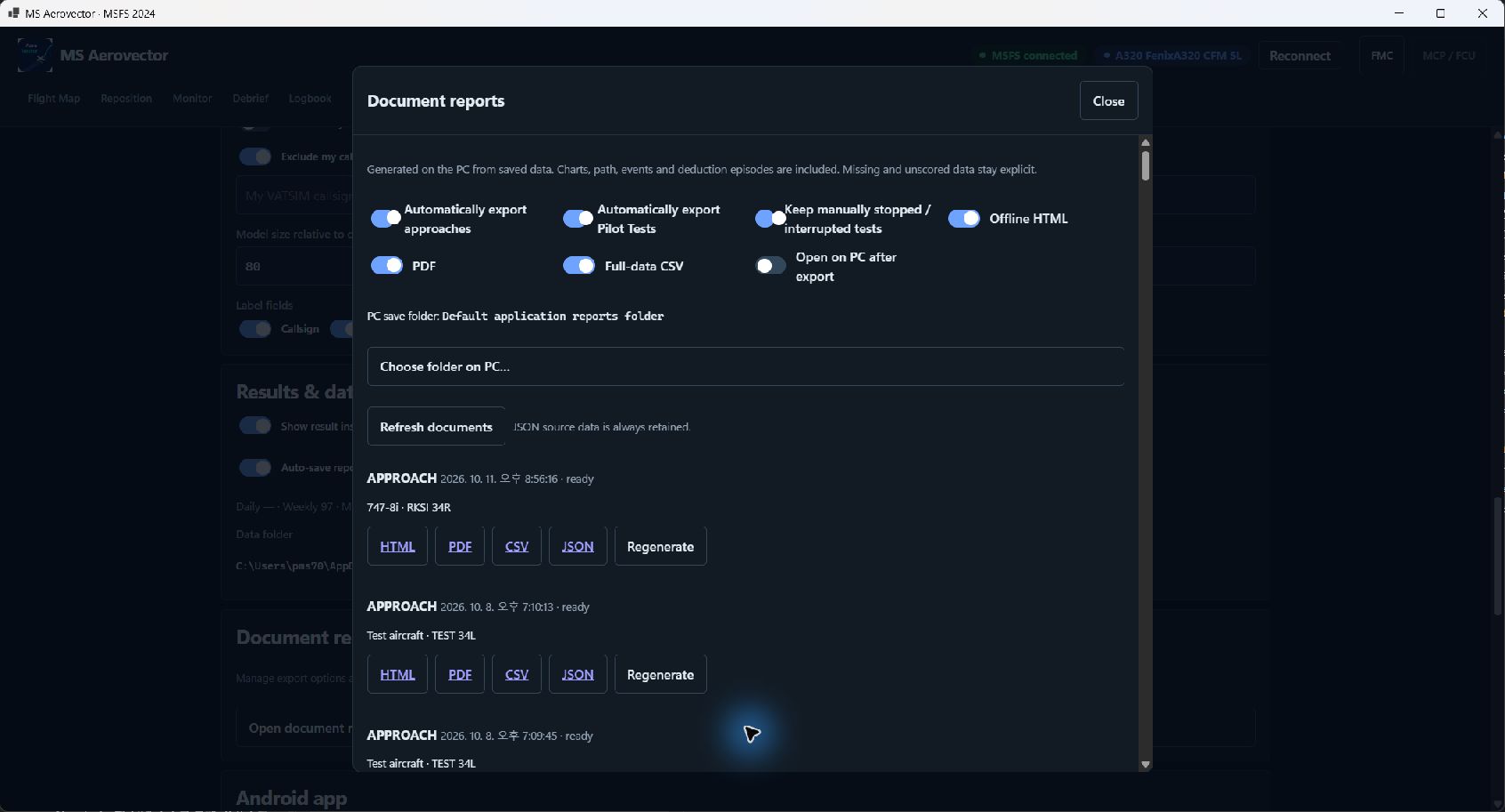
Settings and report management: Tablet pairing is now the first Settings card. A compact report card further down opens the full document-report library and options in a separate window, with scrolling inside the window, Escape dismissal and focus return. A growing report library no longer pushes pairing down the page.
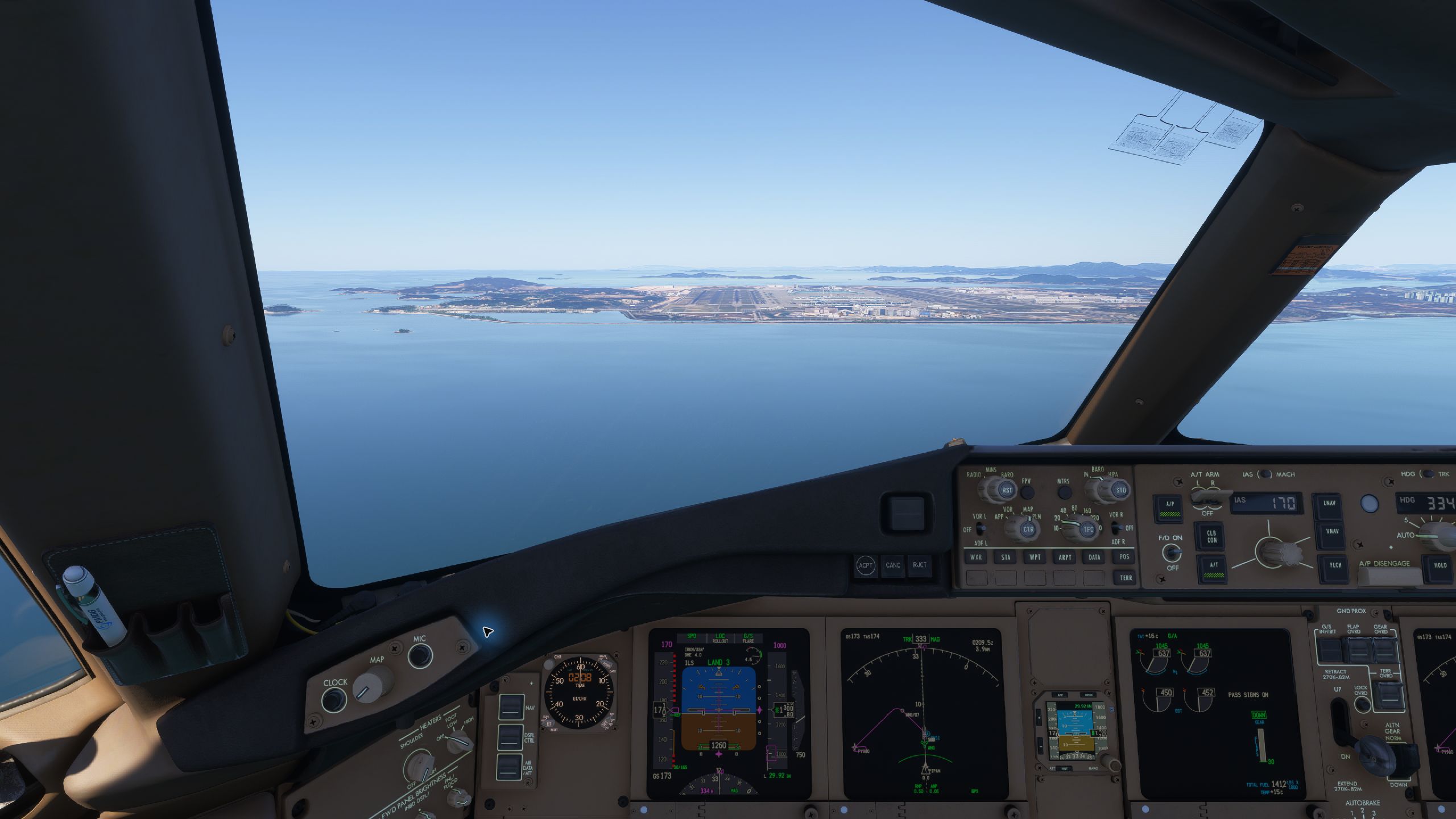
PMDG 777 preparation: route checks now wait for fresh ACT LEGS pages and verify the complete route across pages. Automatic MCP preparation checks powered, current MCP and CDU data before entering targets. Aircraft-specific flight-director handling is preserved during automatic FMC / MCP preparation. Two RKSI runway sequences were recorded; this is not an autoland certification.
Hold release: the last airborne reposition’s saved indicated airspeed (IAS) and vertical speed are reapplied before freeze release or full-pause resume, only for the same aircraft and session. Legacy true-airspeed inputs remain separate. Speed restoration does not remove accumulated AP servo commands or guarantee stable attitude after every hold.
Verification covers the named aircraft and scenarios, not every model or procedure. Fenix weather / minima / AP engagement readiness remains unverified. A separate 747 RKSI ILS15LY course mismatch remains unresolved. These checks do not certify autoland, complete landing automation or captured LOC / GS reset. Optional FMC preparation failure does not block repositioning.
Actual Host document-report window, with report options and its own scrollable library. Some entries are test records.Actual Working Title 747-8 MCP showing the requested 1,600 ft after the altitude-slot correction.Actual PMDG 777 simulator capture in the checked RKSI approach sequence. The shot used STABLE HOLD and separate pilot-input and flap preparation; it does not establish complete freeze-release attitude recovery.Actual Fenix A320 FCU during the checked preparation sequence. Weather, minima and AP readiness remain outside the verified scope.
Your phone and tablet belong in the flight deck.
Keep the CDU on your phone and the flight map on your tablet. Bring supported MCP / FCU controls to a second screen, sharing the flight session running on your PC.
Start the PC program → connect an Android companion or browser on the same network → use the map and supported instruments
Phone and tablet are companion screens. The Windows simulator PC and program stay running.
Explore more screenshots with the arrows or swipe.
Choose the approach, the seconds before touchdown, or the moment you want to try again.
BEFOREWITH MS AEROVECTOR
Which approach should I practice today?
BEFORE
“Nine miles out, lined up with the runway. That should do it. Now tune the ILS… and here I am watching touchdown FPM again.”
VIEW FULL SIZE ↗CDU and navigation setupMS Aerovector screen illustrating the situation
WITH MS AEROVECTOR
“This time, I’ll choose OLME1Y and ILS 34L into Incheon (RKSI), starting at DY034. The full route and selected FIX are visible together. Less switching between charts and setup screens to check my starting position.”
“I’ve reviewed the approach deviations and landing result. I want to practice flare and idle timing too. Do I have to fly final again, or can I repeat just the last few seconds?”
VIEW FULL SIZE ↗Illustrative approach deviations and landing resultMS Aerovector screen illustrating the situation
WITH MS AEROVECTOR
“Back to 300 feet, ready for another try. A slightly later flare this time; a different idle timing next time. The recording and 3D trace let me compare what actually changed.”
The aircraft moved. The setup still needs repeating.
BEFORE
“Open the CDU menu, enter the FMC, then find each page I need. Rechecking the same setup every time I repeat an approach is getting tedious.”
VIEW FULL SIZE ↗Open the live CDU menu before manual setupMS Aerovector screen illustrating the situation
WITH MS AEROVECTOR
“Here are the optional preparation controls and FMC SET, with the aircraft’s support information alongside. Use the supported setup assistance, then verify the cockpit before starting practice.”
“I left the planned path in that segment. When did the deviation start growing? Looking at the map and graph separately makes the moment hard to match.”
VIEW FULL SIZE ↗Illustrative RKSI path-deviation episodeMS Aerovector screen illustrating the situation
WITH MS AEROVECTOR
“Move the replay bar: the aircraft position and graph cursor move together. Find where the deviation began, compare the values, and choose the moment to practice again.”
VIEW FULL SIZE ↗Linked replay position and cross-track / vertical graphs
* Arrival and FIX names are scenario examples; availability depends on installed navigation data. The map does not replace procedure charts. Aircraft preparation varies by supported aircraft. Retraining approximates position, attitude and supported settings; it does not rewind internal aircraft state, FMC or weather.
Explore the tools for your next flight.
Choose a feature to jump to its description and real screenshots, or keep scrolling through the whole product.
Your flight, from every angle.
Follow the aircraft in 2D or 3D, bring in your SimBrief route and check the next FIX. Move from an ocean crossing to an airport surface, with airport, navigation and ATC information close at hand.
Choose the airport, runway, approach, STAR and transition, then select your starting FIX. Inspect the procedure on the map and adjust the training legs before you fly.
* Aircraft preparation features depend on the supported aircraft.
Set up a visual intercept, downwind or flare practice position. Spend more of the session on the part you want to improve, rather than repeating the whole flight.
Record the approach for a closer review of flight path, airspeed, vertical speed, G force and pitch. Capture the moments around flare, throttle idle and touchdown, then open the session in Debrief or Replay.
See the measurements behind the result. Compare the planned approach with the recorded track, inspect touchdown and bounce, and find the observations behind each deduction. The colored trace helps locate the parts worth revisiting.
Explore more screenshots with the arrows or swipe.
VIEW FULL SIZE ↗3D path + synchronized graphs · synthetic telemetry demoVIEW FULL SIZE ↗Cross-track and vertical-path review · illustrative scoresVIEW FULL SIZE ↗Tablet review workspace · synthetic demo
Go back to the moment that matters.
Scrub through the timeline or select a graph point. The map, aircraft attitude and graphs follow the same moment. Find the moment you want to improve, then use Reposition here to practice from that recorded point. Recorded Boeing-style or Airbus-style PFD instruments follow that same sample, with automatic or manual style selection and an enlarged instrument view.
* Review playback alone does not move the aircraft. Retraining requires the same aircraft and an airborne point at least 50 ft AGL. Position, attitude and supported targets/configuration are approximate; FMC, internal aircraft state and weather are not restored. Freeze remains held. PFD detail depends on recorded fields; missing FMA, FD, QNH, ILS identification and DME are not inferred. AGL is not radio altitude.
Find previous sessions in Logbook and return to their reports. Keep detailed results as PDF, offline HTML or CSV, with approach guides, path maps and touchdown details. Reports can also be reviewed on a phone.
Follow spoken and onscreen instructions, then review the measurements for each exercise. See where a climb or turn met the target and where it needs another try.
* Pilot Test is simulation practice, not a certified pilot assessment.
Change one target while holding the others. Practice left and right 360° steep turns at a 45° bank.
Stage 2 · Two targets together
Change two targets together and practice climbs or descents at a commanded vertical speed.
Stage 3 · Combined maneuvers
Work on altitude, speed and heading together, balancing progress across all three targets.
Reach the target. Then hold it.
Review your response to the instruction, target capture, stable hold and deviations from conditions you were asked to maintain. Combined tasks also assess coordinated starts and balanced progress. Exercise-specific deductions and error graphs show what to practice next.
ALT
±100 ft
IAS
±10 kt
HDG
±10°
BANK
±5°
* These are reference tolerances; exercise-specific rules apply. Commanded V/S is evaluated in the middle of an altitude change. Use an aircraft-based automatic or manual command envelope. This is simulator practice, not an official checkride.
View and operate the supported aircraft CDU or MCDU through the companion interface. Aircraft-specific preparation tools help get the selected approach ready.
Use a second screen for supported aircraft MCP / FCU controls. Check the display and make supported adjustments from your phone or tablet while the simulator runs on your PC. Compatibility is listed below.
For every aircraft. Dedicated integrations where available.
Maps, approach practice, recording, analysis and Pilot Test do not require one of the commercial aircraft listed below. Those columns describe dedicated cockpit integrations, not which aircraft can use the app.
O — Supported △ — In development X — Not supported
Scroll the table sideways to compare aircraft. →
MSFS 2024 feature support
Feature
All aircraft
PMDG 737
PMDG 777
Default 747-8
iFly MAX8
Fenix
iniBuilds A350
2D / 3D Flight Map
O
O
O
O
O
O
O
SimBrief route on the map
O
O
O
O
O
O
O
Airport, runway, FIX & taxi map
O
O
O
O
O
O
O
IFR procedure & starting FIX selection
O
O
O
O
O
O
O
Visual intercept & downwind setup
O
O
O
O
O
O
O
200 / 300 ft flare practice positions
O
O
O
O
O
O
O
Reposition & session presets
O
O
O
O
O
O
O
Flight recording & landing debrief
O
O
O
O
O
O
O
Replay graphs & 3D trace
O
O
O
O
O
O
O
Retrain from a recorded point
O
O
O
O
O
O
O
Logbook & PDF / HTML / CSV reports
O
O
O
O
O
O
O
Pilot Test exercises & review
O
O
O
O
O
O
O
Phone / tablet map & reports
O
O
O
O
O
O
O
Aircraft-specific MCP / FCU inputs¹
X
O
O
O
O
O
O
Live CDU / MCDU display
X
O
O
O
O
O
X
CDU / MCDU key input
X
O
O
O
O
O
X
Selected FMC / NAV approach preparation²
X
O
O
O
O
△
X
Full FMS / MFD screen mirroring
X
X
X
X
X
X
X
* All aircraft identifies functions based on common MSFS 2024 position and flight data. Results depend on the aircraft’s available data and reposition behavior; it does not imply individual validation of every version or state combination.
* ¹ Available targets and mode inputs vary by aircraft. A350 supports selected FCU / KCCU inputs, not full FMS preparation.
* ² O means a validated selected preparation workflow, not complete automation of every procedure or setting. iFly supports selected ILS workflows; default 747-8 supports validated procedure / NAV tasks. Fenix approach preparation is an experimental workflow under development and validation.
* MSFS 2020 and Aerowinx PSX compatibility are not confirmed. Direct Navigraph integration is not supported; map route import does not automatically load the aircraft FMC.
Make the next flight count.
MS Aerovector is a digital software product. No hardware panel is required.
Windows simulator PC required; phone and tablet are companion screens.
Internet required for first activation. The current license supports up to two PCs.
For home flight simulation and practice. Maps, traffic and training scores are not for real-world navigation or certified pilot assessment.
Online map, weather and traffic information can vary in coverage and update time.



 VIEW FULL SIZE ↗
 VIEW FULL SIZE ↗


